CleanCab-Technician App
INTRODUCTION
KEY FEATURES:
• Advanced controller access that provides technicians with more features than the standard CleanCab app.
• System monitoring with real-time status tracking of pressure, CO2 levels, and overall system performance.
• Sensor calibration tools to calibrate pressure and CO2 sensors with recommended yearly maintenance.
• Alarm management capabilities for customising alarm levels, delay times, and viewing alarm history.
• Filter maintenance tracking for filter service history, setting reminders, and logging replacement details.
• Settings customisation for adjusting target pressure, delay times, and fan speeds to optimise performance.
• Firmware updates to check current version and install updates when available.
• Data export for calibration, alarm, and filter histories to support record-keeping.
• System testing features for pressure testing and diagnostics, including 100% fan operation mode.
• Running time tracking to monitor and log system operation times.
• Door/window detection optional mode that works with door or window switches.
INSTALLATION
Important: Before installing the Technician App, you must first uninstall the standard
CleanCab app from your device.
GETTING STARTED
Login and Connection
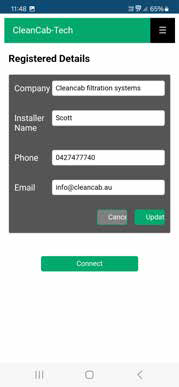
1. Upon opening the app, you will see the login screen
2. Enter your technician details
3. Once logged in, tap “Connect” to search for Bluetooth devices
4. On the Bluetooth page, select “CleanCab” to establish a connection
5. After successful connection, the Status page will appear
Accessing the Menu
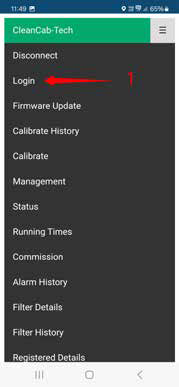
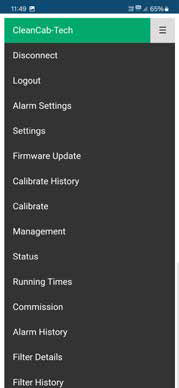
To access the full menu of technician features:
1. Tap the three horizontal lines in the top right corner
2. Select “Login” to access all available features
MAIN FEATURES
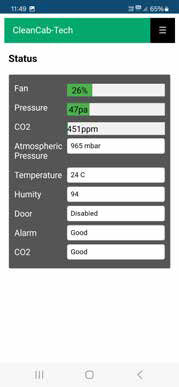
Status Page
The Status Page displays the current system status,
including:
• Connection status
• Sensor readings
• Current operating mode
• System health indicators
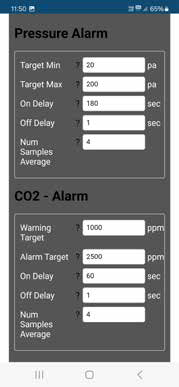
Alarm Settings
This page allows you to configure alarm parameters:
• Adjust alarm trigger levels
• Set alarm delay times
• Configure filter service reminder settings
• Modify sensor sample rates for Pressure and CO₂ sensors
Tips
• Tap the “?” icon next to any setting for additional information
• Take a screenshot of current settings before making changes
• After making changes, scroll to the bottom and tap “Save”
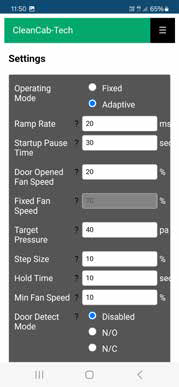
Settings Page
The Settings Page allows you to modify:
• Target pressure values
• System delay times
• Door/window detection mode (requires installation of door/window switches)
• Fan speed settings, including fixed speed options
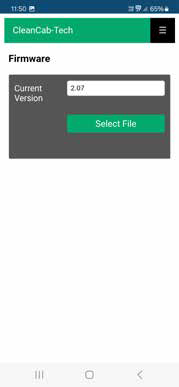
Firmware Update
This section displays:
• Current firmware version
• Update options
Note: Only use this feature when specifically instructed or when notified about an available firmware update. Updates can also be found in the Technician section of the CleanCab website.
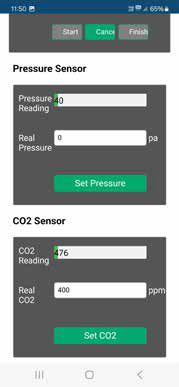
Calibrate
The Calibrate page allows you to calibrate both
Pressure and CO₂ sensors.
Pressure Sensor Calibration:
1. Ensure all doors and windows are open
2. Set the calibration to 0 PA
CO₂ Sensor Calibration:
1. Run the cabin without an operator inside until CO₂ levels stabilise (this can take up
to 30 minutes)
2. Use a calibrated CO₂ monitor as the reference standard
3. Enter the reference value from the calibrated monitor
Note: CleanCab recommends yearly calibration of all sensors for correct operation. Calibrated CO₂ monitors are available from CleanCab - please call for more information.
Calibration History
This section displays:
• Complete history of all calibrations performed
• Export functionality to save calibration data
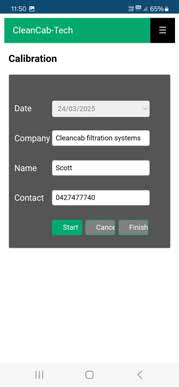
Calibrate start
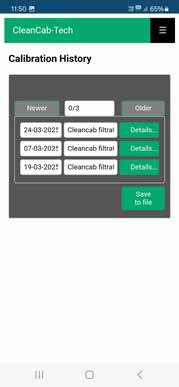
Calibration History
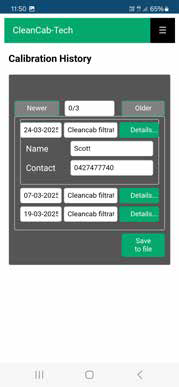
Calibration History Detail
Management
The Management page provides advanced functions:
• Delete system logs (ensure you save all logs to file before resetting)
• Run fan at 100% capacity for system pressure testing
Important: When using the 100% fan test function, remember to toggle the feature off when testing is complete.
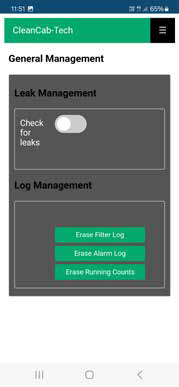
Management
Running Times
This page displays all current running time statistics for
the system.
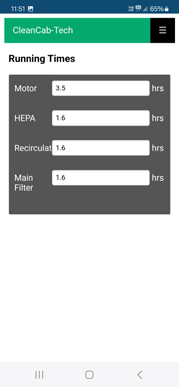
Running Times
Commission Page
Use this page to view and update commissioning details as required.
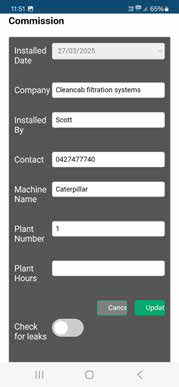
Commission
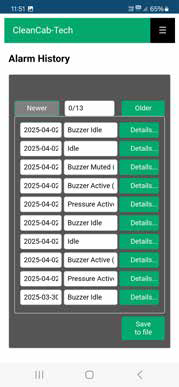
Alarm History
The Alarm History page allows you to:
• View complete alarm history
• Export alarm data for record-keeping or analysis
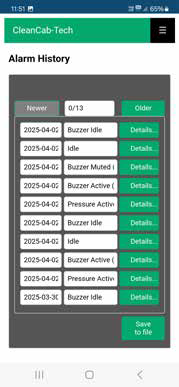
Alarm History
Filter Details
This section allows you to:
• Add and update filter service information
• Track filter maintenance
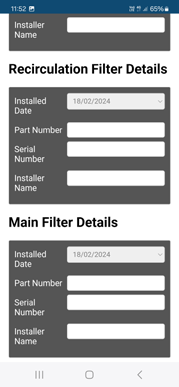
Filter Details
Filter History
The Alarm History page allows you to:
• View complete alarm history
• Export alarm data for record-keeping or analysis
USER ACCOUNT
Registered Details
You can update your registered technician details at any
time from:
• The initial login screen
• The Registered Details section in the menu
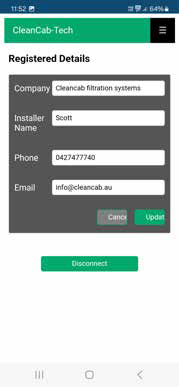
User Account
CONTACT INFORMATION
CONTACT SUPPORT:
For technical assistance, contact CleanCab support using the details provided in the Contact section of the app.